

Starting a TikTok Live stream in 2025 is easier than you think, but many creators still struggle with the setup process and technical requirements. This TikTok Live Stream Tutorial 2025 is designed for content creators, influencers, and businesses ready to connect with their audience in real-time through live video.
TikTok Live streaming lets you engage directly with followers, showcase your personality, and build stronger community connections. The platform has updated its live streaming features throughout 2024, making it more accessible and user-friendly for creators at all levels.
This guide covers everything you need to know about how to start a TikTok Live in 2025. You’ll learn the current requirements needed to unlock the live streaming feature, including follower count and account standing. We’ll walk through the step-by-step process to set up your first live stream for maximum viewer engagement. You’ll also discover the essential tools and features that can make your broadcasts more interactive and professional.
Ready to go live and connect with your TikTok community? Let’s dive into the complete process.
Meet TikTok Live Streaming Requirements
Verify Your Account Age and Follower Count
Before you can start streaming on TikTok, your account needs to meet specific eligibility criteria. TikTok requires users to have at least 1,000 followers to access the Live feature. This threshold helps ensure that streamers have built an engaged audience and understand the platform’s community standards.
Your account also needs to be at least 16 years old to go live. If you’re under 18, you’ll need to verify your age through TikTok’s age verification process. Users who are 18 and older can receive gifts during their live streams, which can be converted to real money through TikTok’s Creator Fund program.
Check your follower count by visiting your profile page. The number appears directly below your username. If you’re close to the 1,000 threshold, focus on creating engaging content, using trending hashtags, and posting consistently to grow your audience organically.
Ensure Your Account is in Good Standing
TikTok monitors all accounts for compliance with community guidelines. Accounts with recent violations, strikes, or bans may temporarily lose access to live streaming features. Even minor infractions like copyright violations or inappropriate content can affect your eligibility.
Review your account status by checking for any notifications or warnings from TikTok. If you’ve received strikes recently, wait for them to expire before attempting to go live. Most strikes expire after 90 days, but serious violations can result in longer restrictions.
Make sure your content aligns with TikTok’s community standards. Avoid posting copyrighted music, explicit content, or anything that could be flagged as harassment or misinformation. Building a positive reputation on the platform strengthens your ability to maintain live streaming privileges long-term.
Update to the Latest TikTok App Version
Running an outdated version of TikTok can prevent you from accessing live streaming features. The platform regularly releases updates that include bug fixes, new features, and security improvements that directly impact live streaming functionality.
Visit your device’s app store and search for TikTok to check if updates are available. On iOS, open the App Store and tap your profile icon to see pending updates. Android users should open Google Play Store and navigate to “My apps & games” to find available updates.
After updating, restart the app completely by closing it and reopening it. This ensures all new features load properly. Some updates require a full device restart to function correctly, especially on older phones or tablets with limited memory.
Access TikTok Live Feature on Your Device
Navigate to the Create Screen
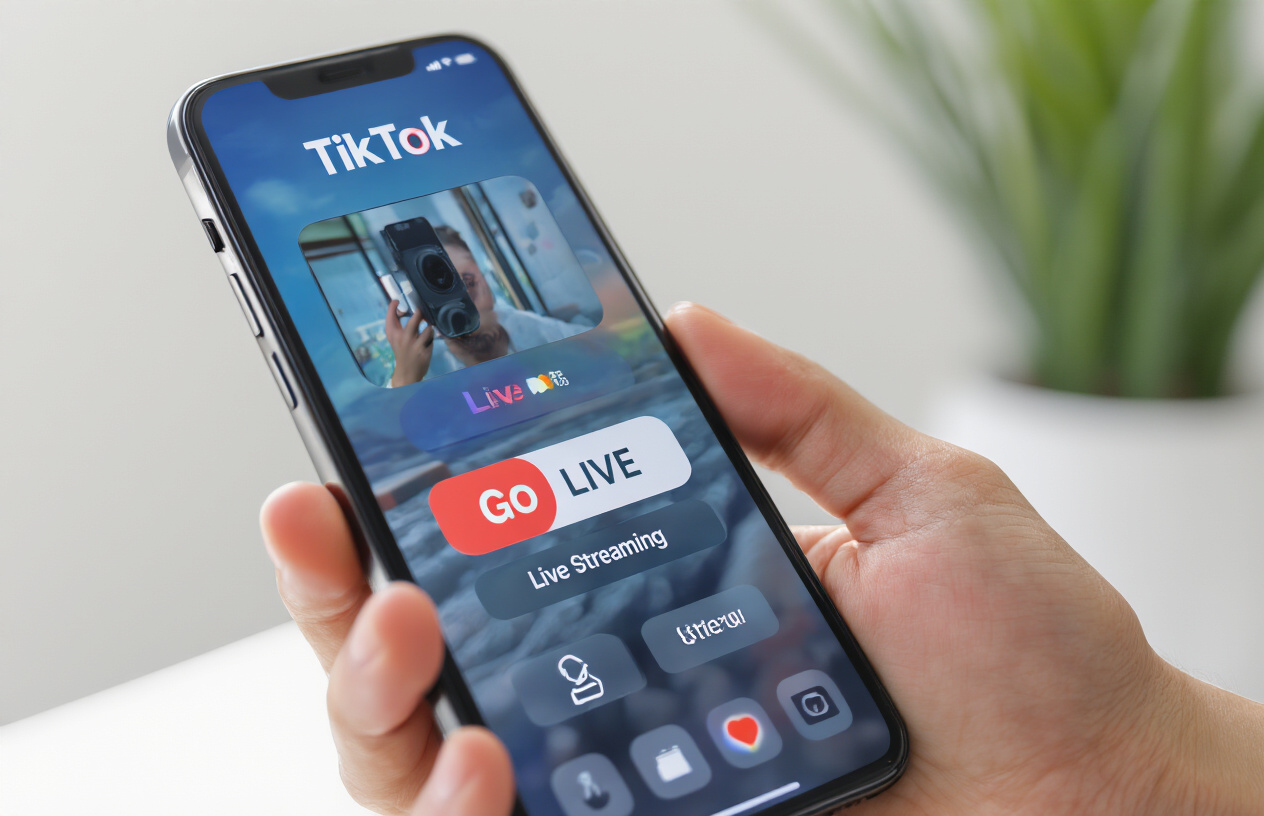
Open your TikTok app and look for the plus icon (+) at the bottom center of your screen. This is your gateway to all content creation features. Tap this button to access TikTok’s creation hub where you’ll find recording options, effects, and the live streaming feature.
Once you tap the plus icon, you’ll see several options appear on your screen. The interface displays different recording modes including the standard 15-second and 60-second video options, along with photo capture capabilities. The live streaming option sits prominently among these choices, typically labeled as “LIVE” in bold letters.
Your device needs to be running the latest version of TikTok for the live feature to appear correctly. If you don’t see the live option immediately, try updating your app through your device’s app store. The create screen layout may vary slightly between iOS and Android devices, but the live option remains consistently accessible from this central creation area.
Select the Live Option
After reaching the create screen, locate the “LIVE” option which appears as a distinct button or tab. This feature typically displays with a red dot or live indicator to make it easily recognizable. Tap directly on this live option to begin setting up your broadcast.
The live selection process triggers TikTok’s streaming preparation mode. Your screen will transition from the standard recording interface to the live streaming setup page. This new interface shows a preview of what your audience will see, along with various customization options for your stream.
Before proceeding, TikTok may display a brief overview of live streaming guidelines or community standards. Take a moment to review these requirements as they outline content policies specific to live broadcasts. Understanding these rules helps prevent your stream from being interrupted or your account from facing restrictions.
Grant Necessary Permissions for Camera and Microphone
When you first attempt to go live, TikTok will request access to your device’s camera and microphone. These permissions are essential for broadcasting, so you must allow both to proceed with your live stream. Tap “Allow” or “Grant Permission” when these popup notifications appear.
Your device’s operating system handles these permission requests differently depending on whether you’re using iOS or Android. iPhone users will see system-level permission dialogs that require explicit approval for each feature. Android users might see similar prompts, though the exact wording and appearance can vary based on your device manufacturer and Android version.
If you accidentally deny these permissions, don’t panic. You can manually enable them through your device settings. On iPhone, go to Settings > Privacy & Security > Camera/Microphone, then find TikTok in the list and toggle the permissions on. Android users should navigate to Settings > Apps > TikTok > Permissions and enable camera and microphone access.
Some users experience issues where permissions seem granted but the camera or microphone still doesn’t work during live streams. This often happens due to conflicting apps or background processes. Close other camera or recording apps before going live, and restart TikTok if problems persist. Your live stream quality depends heavily on these core permissions working properly.
Set Up Your Live Stream for Maximum Engagement
Choose an Eye-Catching Title and Thumbnail
Your live stream title acts as the first impression for potential viewers scrolling through TikTok. Create titles that spark curiosity or promise value – think “Cooking disaster about to happen” instead of “Cooking stream.” Keep titles under 100 characters to prevent cutoff on mobile devices.
The thumbnail selection happens automatically from your first few seconds of streaming, so make those moments count. Position yourself clearly in the frame, use good lighting, and consider holding up props or text cards that relate to your content. Your facial expression should match your stream’s energy – excited expressions work better than neutral ones for grabbing attention.
Test different title formats to see what resonates with your audience:
- Question-based titles (“Can I learn guitar in 30 minutes?”)
- Challenge formats (“Trying viral recipes until one works”)
- Behind-the-scenes angles (“Studio tour before the big announcement”)
- Interactive promises (“Taking your song requests”)
Select Your Target Audience and Privacy Settings
Privacy settings determine who can discover and interact with your live stream. The “Everyone” setting maximizes reach but opens you to random viewers and potential trolls. “Friends” limits your audience to mutual followers, creating a more intimate experience but reducing growth potential.
Consider your content type when choosing settings. Educational or entertainment streams benefit from public visibility, while personal conversations work better with restricted access. You can also enable comment filtering to automatically hide potentially inappropriate messages.
TikTok’s algorithm favors streams that maintain viewer engagement, so choose settings that encourage your target audience to participate. If you’re building a community around specific interests, public streams help attract like-minded viewers who might become regular followers.
Add Relevant Hashtags and Categories
Strategic hashtag use helps the right people find your stream. Mix popular hashtags with niche-specific ones to balance discoverability and targeting. Research trending hashtags in your category, but don’t stuff your description – 5-10 relevant tags work better than 20 random ones.
TikTok’s category system affects how your stream appears in searches and recommendations. Choose categories that accurately represent your content rather than picking popular ones that don’t match. Mismatched categories can hurt your stream’s performance because viewers expect specific content types.
Create a hashtag strategy that includes:
- Broad category tags (#music, #cooking, #art)
- Specific niche tags (#acousticguitar, #veganrecipes, #digitalpainting)
- Community tags (#smallbusiness, #studentlife, #petowners)
- Trending tags relevant to your content
Test Your Audio and Video Quality
Technical issues kill viewer engagement faster than anything else. Test your setup before going live by recording short videos to check audio levels and video clarity. Poor audio quality frustrates viewers more than imperfect video – invest in decent headphones or external microphones if possible.
Lighting makes a dramatic difference in how professional your stream looks. Natural light from windows works well, but avoid backlighting that makes you appear as a silhouette. Ring lights or desk lamps positioned at eye level create flattering, consistent lighting.
Check your internet connection speed before streaming. TikTok recommends at least 1 Mbps upload speed for smooth streaming. Close unnecessary apps and connect to Wi-Fi when possible to prevent connection drops that interrupt your stream.
Position your camera at eye level to create better connection with viewers. Avoid extreme angles that distort your appearance or make the stream uncomfortable to watch. Leave some headroom in the frame and ensure your background isn’t distracting or too cluttered.
Master TikTok Live Streaming Tools and Features
Use Interactive Elements Like Q&A and Polls
Interactive features transform passive viewers into active participants. The Q&A feature lets your audience submit questions directly during your stream, creating a dedicated space for meaningful conversations. You can pin important questions to keep them visible and address them when convenient.
TikTok’s polling system allows viewers to vote on topics in real-time. Create polls about content decisions, product preferences, or fun personality questions. Polls appear as overlays on your stream and generate immediate engagement metrics you can track.
Live reactions give viewers quick ways to respond without typing. Heart reactions create visual effects that cascade across the screen, while other emoji reactions help gauge audience sentiment. Encourage viewers to use specific reactions for yes/no questions or to show excitement about announcements.
Enable and Manage Live Gifts and Virtual Items
Virtual gifts represent a monetization opportunity for creators with established followings. Viewers purchase coins using real money, then convert those coins into gifts during your live stream. Popular gifts include roses, drama queens, and TikTok universes, each with different coin values.
Access gift settings through your live stream controls. You can disable gifts entirely if you prefer non-monetary engagement, or enable them selectively. Some creators save gift opening for specific stream segments to maintain content flow.
Gift notifications appear prominently on screen when received, often triggering special visual effects. Acknowledge gift-givers personally to encourage continued support and build community connections. Track your gift earnings through TikTok’s creator dashboard to understand revenue patterns.
Moderate Comments and Manage Your Chat
Comment moderation keeps your live stream environment positive and focused. TikTok provides automatic filtering for spam and inappropriate content, but manual moderation gives you precise control. Pin helpful comments or important announcements to keep them visible above the chat flow.
Block problematic viewers immediately to prevent disruptions. Blocked users can’t comment, send gifts, or interact with your stream in any way. Use the restricted comment feature to limit chat participation to followers only during sensitive discussions or when managing large audiences.
Assign trusted community members as moderators if you qualify for this feature. Moderators can delete inappropriate comments and help manage chat flow while you focus on content creation. This becomes essential as your audience grows larger.
Share Your Screen or Switch Between Cameras
Screen sharing opens creative possibilities for tutorials, app demonstrations, or gaming content. Access this feature through your live stream settings, then select which apps or screens to broadcast. Remember that screen sharing displays everything visible on your device, so close private notifications first.
Camera switching works seamlessly between front and rear cameras during streams. Use the front camera for direct audience interaction and the rear camera for showing your environment, products, or activities. Plan camera transitions to maintain visual interest without disrupting your content flow.
Some devices support picture-in-picture mode, showing both camera feeds simultaneously. This works particularly well for reaction content or when demonstrating physical products while maintaining face-to-face connection with viewers.
Add Live Effects and Filters
TikTok’s live effects library includes beauty filters, color adjustments, and interactive backgrounds. Beauty filters smooth skin tones and adjust lighting automatically, while color filters create specific moods or match your brand aesthetic. Test different combinations before going live to find your preferred look.
Interactive effects respond to viewer actions like comments or gifts. Some effects trigger animations when viewers send specific emojis or reach certain engagement thresholds. These create dynamic visual experiences that reward audience participation.
Background effects can blur your environment or replace it entirely with digital scenes. This provides privacy protection while maintaining professional appearance standards. Virtual backgrounds work best with consistent lighting and minimal movement to avoid visual glitches.
Time-based effects change automatically during your stream, creating visual variety without manual intervention. Seasonal effects align with holidays or current events, helping your content feel timely and relevant to your audience.
Optimize Your Live Stream Performance
Plan Your Content and Engagement Strategy
Creating compelling live content starts with understanding your audience and their preferences. Research trending topics within your niche and identify what resonates most with your followers. Develop a content calendar that includes different types of streams – tutorials, Q&A sessions, behind-the-scenes moments, or collaborative content with other creators.
Your engagement strategy should focus on real-time interaction. Prepare conversation starters, questions for your audience, and interactive activities like polls or challenges. Keep a list of backup topics ready for slower moments during your stream. Consider creating signature segments that viewers can expect, such as “Monday Motivation” or “Friday Fun Facts” to build anticipation.
Plan your stream duration based on your audience’s activity patterns. Most successful TikTok Live streams last between 30 minutes to 2 hours, giving you enough time to build momentum and maintain viewer interest without causing fatigue.
Promote Your Upcoming Live Stream in Advance
Building anticipation for your live streams significantly increases viewership and engagement. Start promoting your upcoming stream 24-48 hours in advance through regular TikTok posts, Stories, and comments on your recent videos. Create teaser content that hints at what you’ll cover during the live session.
Use TikTok’s scheduling features to announce your stream time consistently. Pin comments on your recent posts mentioning your live stream schedule, and respond to comments with reminders about your upcoming broadcast. Cross-promote on other social media platforms where your audience is active.
Consider creating countdown videos or “Coming Up Next” posts that showcase previews of your planned content. Tag relevant users who might be interested in your stream topic, and collaborate with other creators to cross-promote each other’s live streams.
Maintain Consistent Streaming Schedule
Consistency builds trust and helps your audience know when to find you online. Choose specific days and times that work best for your target audience’s time zones and stick to this schedule religiously. Your followers will start planning their time around your streams when they know you’re reliable.
Create a weekly or monthly streaming calendar and share it with your audience. Post this schedule in your bio, pin it as a comment on popular videos, or create a dedicated highlight showing your streaming times. If you need to change your schedule, give your audience at least 24 hours notice.
Track which days and times generate the highest viewership and engagement rates. Adjust your schedule based on these insights while maintaining consistency. Remember that different time slots may attract different audience segments, so experiment strategically.
Monitor Your Analytics and Viewer Metrics
TikTok provides detailed analytics for your live streams that reveal valuable insights about your audience behavior. Pay attention to peak viewing times, average watch duration, and engagement rates throughout your streams. These metrics help you identify which content types and time slots work best.
Track viewer retention patterns to understand when people join and leave your streams. If you notice consistent drop-offs at certain points, analyze what happened during those moments and adjust your content accordingly. Monitor which topics or activities generate the most comments, likes, and shares.
Use third-party analytics tools to get deeper insights into your live streaming performance. Track follower growth after streams, conversion rates from live viewers to regular followers, and engagement on posts published immediately after your live sessions. Document successful stream elements and replicate them in future broadcasts.
Troubleshoot Common TikTok Live Issues
Fix Poor Connection and Streaming Quality Problems
Network instability ranks as the most common culprit behind TikTok Live streaming failures. When your stream pixelates, buffers constantly, or drops viewers unexpectedly, check your internet connection first. Switch to a strong Wi-Fi network with upload speeds of at least 3 Mbps for decent quality streaming. Mobile data can work in a pinch, but burns through your allowance quickly.
If streaming quality remains poor despite good connection speeds, reduce your video resolution temporarily. Access TikTok’s settings during your live stream and lower the quality from HD to standard. This adjustment helps maintain consistent streaming when bandwidth fluctuates.
Physical proximity to your router matters more than people realize. Move closer to eliminate interference from walls, appliances, or other devices competing for bandwidth. Close unnecessary apps running in the background – they steal precious processing power and internet resources your live stream needs.
Network congestion during peak hours (evenings and weekends) can tank your streaming quality. Consider scheduling your live sessions during off-peak times when fewer people are online. If you must stream during busy periods, pause briefly to let your connection stabilize when you notice quality drops.
Resolve Audio and Video Synchronization Issues
Audio-video sync problems create jarring viewing experiences that drive audiences away fast. This issue typically stems from processing delays between your device’s microphone and camera systems. Restart the TikTok app completely before starting your stream – this simple step resolves most sync issues.
External microphones and headphones sometimes introduce latency that throws off synchronization. Test your audio setup before going live by recording a short video and checking if lip movements match spoken words. If delays persist, switch back to your device’s built-in microphone temporarily.
Device storage plays a bigger role than expected in sync problems. Clear your cache and free up storage space – aim for at least 2GB of available space before streaming. Full storage forces your device to work harder, creating processing delays that manifest as sync issues.
Background app interference causes many synchronization headaches. Close all non-essential apps, disable notifications, and enable “Do Not Disturb” mode during your stream. Your device can then dedicate full processing power to maintaining proper audio-video alignment.
Handle Unexpected App Crashes or Freezes
App crashes during live streams feel devastating, especially when you’re building momentum with viewers. The moment TikTok freezes or crashes, force-close the app immediately rather than waiting for it to respond. Reopen TikTok and restart your live stream – most viewers will return if you’re back within a few minutes.
Device overheating triggers many unexpected crashes during extended streaming sessions. Your phone or tablet works overtime processing live video, generating heat that causes protective shutdowns. Take breaks between streams, remove your device case during streaming, and avoid direct sunlight or warm environments.
Software conflicts between TikTok and other apps create instability that leads to crashes. Update TikTok to the latest version and restart your device before important streaming sessions. Outdated app versions contain bugs that newer releases have fixed.
RAM limitations cause freezing when your device runs too many processes simultaneously. Before streaming, restart your device to clear memory, close all background apps, and avoid switching between apps during your live session. Keep your streaming setup simple – one app, one focus.
Memory storage critically affects app stability. Delete unused photos, videos, and apps to maintain at least 15% free storage space. When storage runs low, TikTok struggles to process live video data, resulting in freezes and unexpected shutdowns that disrupt your stream.
Starting your TikTok Live journey doesn’t have to be complicated when you know the right steps. From meeting the basic requirements and accessing the live feature to setting up engaging streams and mastering the built-in tools, you now have a complete roadmap for success. Remember that optimizing your performance comes down to understanding your audience, creating quality content, and staying consistent with your streaming schedule.
The key to TikTok Live success lies in preparation and practice. Take time to troubleshoot potential issues before they happen, experiment with different streaming tools, and don’t be afraid to interact with your viewers. Your first few streams might feel awkward, but that’s completely normal. Jump in, start streaming, and let your personality shine through – your audience is waiting to connect with the real you.
Emily Carter
Emily Carter, social media growth expert, shares proven Instagram & TikTok strategies on Fanzico, helping brands and creators boost engagement, visibility, and content performance.